Save 20% on select templates!

Best Bill Payment Calendar Spreadsheet for Monthly Bills: How to Track Due Dates and Avoid Late Fees
Learn how to use a bill payment calendar spreadsheet to track monthly bills, due dates, payment status, autopay, annual bills, overdue payments, and recurring expenses in one simple Excel tracker.
Sally AbdelAziz
6/17/202620 min read
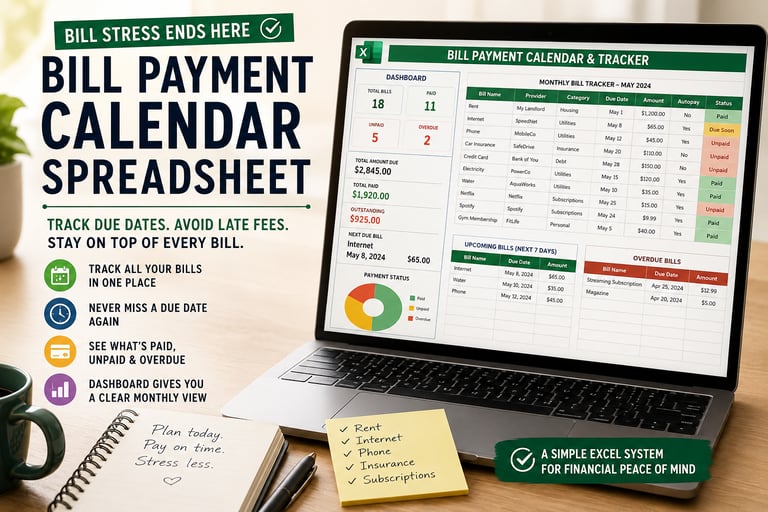
It usually starts with a small moment.
You are making coffee, opening your email, or checking your banking app, and suddenly you see the subject line: Payment Past Due.
Your stomach drops.
You were sure that bill was already handled. Then the mental search begins. You check your calendar. You check your email. You check your bank account. You try to remember whether the bill was on autopay, whether the card changed, whether the payment came out already, or whether you meant to pay it and got interrupted halfway through.
This is exactly why bill tracking should not live in your head.
Most people do not miss bills because they are careless. They miss bills because modern life has too many due dates, payment methods, renewals, subscriptions, and little financial reminders floating around without one clear home.
A bill payment calendar spreadsheet gives every bill a place to land.
Instead of depending on memory, scattered notes, banking notifications, paper statements, and “I think I paid that already,” you can track what is due, what is paid, what is unpaid, what is overdue, what is on autopay, and what is coming next.
In this guide, you will learn how to use a bill payment calendar spreadsheet to organize monthly bills, avoid late fees, track annual bills, review your payments weekly, and create a calmer bill management routine. If you already downloaded the Bill Payment Calendar and Tracker, you can follow along inside your own copy as you read. If you have not downloaded it yet, you can get the [Bill Payment Calendar and Tracker](PRODUCT LINK PLACEHOLDER) here.
Why Bills Become So Easy to Forget
Bills are not difficult because each one is complicated. They are difficult because there are so many of them, and they all arrive on different timelines.
A household may have rent or mortgage, electricity, water, internet, phone service, insurance, streaming subscriptions, school expenses, loan payments, credit cards, app subscriptions, software renewals, medical bills, and occasional annual fees.
Some bills are monthly. Some are quarterly. Some are annual. Some are on autopay. Some require manual payment. Some arrive by email. Some appear only inside an app. Some come with reminders. Some quietly renew without warning.
It becomes a tiny circus of due dates, and nobody gave the circus a calendar.
The problem gets worse when bills are tracked in different places. You may remember the big payments because they happen every month, but smaller recurring payments can slip through quietly. A subscription may renew before you notice. A school payment may be due during a busy week. An insurance payment may only happen once a year, making it easy to forget until it suddenly appears.
This is why a bill payment calendar is so helpful. It turns bill tracking from a memory task into a visibility system. When every bill has a name, provider, amount, due date, frequency, payment status, and notes in one place, you no longer have to hold the whole month in your head.
A good bill tracker does not just answer, “What bills do I have?”
It also answers:
What is due next?
What has already been paid?
What is still unpaid?
What is overdue?
Which bills are on autopay?
Which bills happen every month?
Which bills only happen once or a few times per year?
Which bills need a follow-up or confirmation?
That clarity can reduce stress quickly because bills stop feeling like floating reminders in the background of your mind. They become visible, organized, and easier to manage.
This tracker is not here to judge your past payments. It is here to help your next bill cycle feel clearer.
Quick Bill Chaos Audit: Do You Need a Bill Tracker?
Before we talk about spreadsheets, take a quick honesty check.
You may need a bill payment calendar if you answer yes to two or more of these questions:
Do you ever forget whether a bill was already paid?
Do you rely on memory to remember due dates?
Do you have subscriptions renewing without noticing?
Do you check multiple apps to confirm payment dates?
Have you ever paid a late fee because of a missed due date?
Do annual or quarterly bills surprise you?
Do you have bills on autopay but still feel unsure whether they went through?
Do you keep bill reminders in email, notes, banking apps, paper planners, and your head?
Do you sometimes forget which card or account pays which bill?
Do you feel a little tense near the end of the month because you are not sure what is still due?
If you answered yes to two or more, a bill payment calendar is not just helpful. It may become one of the simplest money systems you use all month.
You do not need to remember everything. You need one place where everything can be seen.
What Is a Bill Payment Calendar Spreadsheet?
A bill payment calendar spreadsheet is an Excel-based tracker that helps you organize your bills, due dates, payment amounts, payment status, and recurring expenses in one file.
Instead of depending on memory, scattered notes, or banking notifications, you enter your bills into a structured monthly bill tracker. The spreadsheet then helps you see what needs attention.
A good bill payment tracker can also include a dashboard, an annual bill overview, status color coding, and overdue flags.
The purpose is simple: help you remember bills, stay current, avoid missed payments, and reduce financial mental load.
A bill payment calendar spreadsheet usually tracks:
bill name
provider or company
bill category
amount due
due date
payment frequency
autopay status
paid or unpaid status
payment date
payment method
notes
monthly totals
overdue bills
upcoming bills
annual bill overview
This makes it different from a general budget tracker.
A budget tracker helps you plan income, expenses, savings, and monthly spending. A bill tracker focuses specifically on recurring obligations, due dates, and payment status.
For the best monthly money system, you can use both together: the [Monthly Budget Tracker for Beginners](BUDGET TRACKER LINK PLACEHOLDER) to plan your income and expenses, and the [Bill Payment Calendar and Tracker](PRODUCT LINK PLACEHOLDER) to keep your due dates and payment status organized.
Sample Monthly Bill Setup
Sometimes the easiest way to understand a bill tracker is to see what it might look like in real life.
Here is a simple example of how one household might set up a monthly bill payment calendar:
BillDue DateAmountAutopayStatusRent1st$1,200NoPaidInternet8th$65YesDue SoonPhone12th$45YesUnpaidCar Insurance20th$110NoUnpaidStreaming Subscription25th$15YesUnpaidCredit Card28th$150NoUnpaid
In less than one minute, this person can see what is already handled, what is coming next, and which payments still need attention.
This is the real value of a bill tracker. It does not make the bills disappear, but it stops them from jumping out from behind the curtains.
Once the bills are visible, the month becomes easier to manage.
What a Bill Payment Calendar Tracks
A strong bill payment calendar spreadsheet should give each bill a clear place. The more clearly you track the details, the easier it becomes to manage the month without confusion.
Bill Name
Start with the bill name. This could be rent, electricity, water, internet, phone, car payment, credit card, school fees, insurance, Netflix, Canva, software subscription, or any other recurring payment.
Use names that are easy to recognize. Instead of writing “subscription,” write the actual service name. This makes your tracker easier to review later.
Provider
The provider is the company, person, platform, or organization you pay. For example, your electricity company, phone provider, landlord, school, bank, insurance company, or subscription service.
This is useful when you need to contact support, check an account, or confirm whether a payment went through.
Category
Categories help you see the type of bills you pay. Common categories include housing, utilities, insurance, subscriptions, debt payments, education, transportation, business tools, and personal services.
Categories are helpful because they reveal patterns. You may discover that subscriptions are higher than expected or that utilities take more of your monthly spending than you realized.
Due Date
The due date is one of the most important parts of the bill tracker. This tells you when the payment must be made.
Due dates help you avoid late fees, but they also help with cash flow. For example, if several bills are due in the same week, you can prepare earlier instead of feeling surprised.
Amount
Enter the bill amount as accurately as possible. Some bills stay the same each month, such as rent or subscriptions. Others change, such as electricity, water, or phone usage.
For variable bills, you can enter an estimated amount first, then update it when the actual bill arrives.
Payment Frequency
Payment frequency tells you how often the bill repeats. Common options include monthly, quarterly, annual, one-time, or irregular.
This is especially useful for bills that do not happen every month. Annual subscriptions and renewals are easy to forget because they disappear from your mind until they return with a tiny invoice-shaped drumroll.
Autopay Status
Autopay can be helpful, but it still needs tracking. A bill being on autopay does not mean you should ignore it. You still need to know when the payment is coming out and whether the account has enough money.
Track autopay as yes or no so you know which bills happen automatically and which ones need manual action.
Paid Status
The paid status tells you whether a bill is paid, unpaid, due soon, overdue, partial, or waiting for confirmation.
This is where your spreadsheet becomes especially helpful. Instead of scanning bank statements or trying to remember what you paid, you can update the status and see the month clearly.
Payment Date
The payment date shows when you actually paid the bill. This is useful if a provider says a payment was not received or if you need to check whether you paid early, late, or on time.
Payment Method
Track how you paid: bank transfer, debit card, credit card, PayPal, cash, check, or another method.
This can save time when you need to trace a payment later.
Notes
Notes are helpful for anything extra, such as confirmation numbers, account reminders, payment changes, login notes, or special instructions.
Keep notes short but useful. The goal is to make the tracker helpful, not turn it into a novel with columns.
Monthly Bills vs Annual Bills: Why You Need to Track Both
Most people remember monthly bills more easily because they appear often. Rent, internet, phone, and utilities usually stay close to the front of your mind because they repeat again and again.
Annual bills are different.
They disappear for months.
Then suddenly, they come back.
A yearly software renewal, insurance payment, professional membership, school fee, domain renewal, website hosting payment, or annual subscription can disrupt the month if it was not planned ahead.
That is why your bill payment system should include both a monthly tracker and an annual overview.
Monthly bills help you manage the current month
Your monthly bill tracker helps you see what is due now. It shows what has been paid, what is still unpaid, and what needs attention in the next few days.
This is your working view.
Annual bills help you prepare before the surprise
Your annual overview helps you see the bigger 12-month picture. It shows which months are more expensive and which bills only appear once or a few times a year.
This is your planning view.
For example, if your car insurance renews in March, your school fee is due in August, and your website hosting renews in November, an annual overview helps you see those costs before they arrive.
The goal is not to be perfect. The goal is to stop being surprised by bills you already knew existed.
How to Organize Bills by Due Date
The easiest way to manage monthly bills is to organize them by due date. This gives your month a clear payment rhythm.
When bills are sorted by date, you can quickly see what is due at the beginning, middle, and end of the month. This matters because your income may not arrive at the same time as your bills. A due date view helps you plan ahead.
For example:
Rent may be due on the 1st.
Phone bill may be due on the 5th.
Internet may be due on the 10th.
Insurance may be due on the 15th.
Credit card may be due on the 20th.
Subscription renewals may happen throughout the month.
Once these due dates are visible, you can stop reacting to bills and start preparing for them.
Step 1: Gather all your bills
Before filling in the spreadsheet, gather your current bills from email, bank statements, apps, paper mail, and account dashboards.
Look for anything you pay regularly, including:
rent or mortgage
electricity
water
gas
internet
phone
insurance
school fees
car payments
loan payments
credit cards
streaming subscriptions
software subscriptions
memberships
annual renewals
Do not rely only on memory. Memory is a messy filing cabinet with no labels. Use real statements or account records whenever possible.
Step 2: Enter each bill into your tracker
Open your [Bill Payment Calendar and Tracker](PRODUCT LINK PLACEHOLDER) and begin with the Monthly Bill Tracker tab. Add one bill per row.
Enter the bill name, provider, category, due date, amount, frequency, autopay status, paid status, payment date, payment method, and notes.
At this stage, do not worry about perfection. The first goal is to get everything into one place.
Step 3: Sort or review by due date
Once your bills are entered, sort or review them by due date. This helps you see the order of payments across the month.
You may notice clusters. For example, several bills may be due during the first week. If this creates pressure, you can plan earlier or contact providers to ask whether a due date can be changed.
Step 4: Mark autopay bills clearly
Autopay bills should still be reviewed. Mark them clearly so you know which payments will happen automatically.
Then check whether the payment source has enough funds before the due date. Autopay is helpful, but only when the account is ready.
Step 5: Add irregular and annual bills
Annual bills are the sneaky ones. They disappear for months, then return wearing a tiny cape of financial surprise.
Add annual and quarterly bills to your tracker so they do not catch you off guard. Examples include insurance renewals, domain renewals, software subscriptions, professional memberships, school registration fees, and annual service plans.
This is where an annual bill overview becomes very useful. It helps you see the bigger 12-month picture, not just the current month.
How to Use Paid, Unpaid, Due Soon, and Overdue Statuses
A bill tracker becomes much more useful when it includes payment statuses. Statuses help you see what needs action quickly.
The most helpful statuses are:
Paid
Unpaid
Due Soon
Overdue
Partial
Autopay
Confirmed
You do not need to use every status if you prefer a simpler system. But at minimum, track paid, unpaid, and overdue.
Paid
Mark a bill as paid when the payment is complete. If possible, also enter the payment date and method.
This gives you a clean record of what has already been handled. It also prevents double-paying or wasting time checking the same bill again.
Unpaid
Unpaid means the bill has not been paid yet but is not necessarily late. This status helps you see what still needs attention.
Unpaid bills should be reviewed during your weekly bill check-in.
Due Soon
Due soon means the bill is approaching its due date. In your tracker, this could mean due within the next 7 days.
This status is useful because it helps you act before the bill becomes overdue. It gives you a small window of breathing room.
Overdue
Overdue means the due date has passed and the bill has not been marked as paid.
This is the status that needs immediate attention. If a bill is overdue, check the provider account, confirm the amount, and pay it as soon as possible.
Partial
Partial means you paid part of the bill but not the full amount. This can happen with payment plans, split bills, or larger obligations.
If you use this status, make sure to note how much remains and when the next payment is due.
Autopay
Autopay tells you the bill is scheduled to be paid automatically. This does not mean it is finished. After the payment date, check that the payment actually went through and then mark it as paid.
Why color coding helps
Color coding makes bill tracking easier to scan. For example:
Green can mean paid.
Amber or yellow can mean due soon.
Muted red can mean overdue.
Neutral or white can mean unpaid but not urgent.
This simple visual system helps you understand the month quickly, even before reading every row. It turns the tracker into a quiet household assistant that taps the desk politely and says, “This one needs attention.”
Late Fee Prevention Checklist
A bill tracker is most powerful when you use it before a bill becomes a problem.
Use this checklist weekly to reduce the chance of missed payments and late fees:
Review your bill tracker once a week.
Check bills due in the next 7 days.
Confirm autopay is still active for automatic payments.
Make sure the payment account has enough money before autopay runs.
Add annual and quarterly bills to your annual overview.
Mark bills as paid only after payment is confirmed.
Add payment dates and payment methods for your records.
Review the dashboard before weekends or holidays.
Keep a backup payment method updated.
Update changed bill amounts as soon as you notice them.
Cancel subscriptions you no longer use.
Keep confirmation numbers or important notes in the Notes column.
This checklist does not need to take long. Ten minutes once a week can prevent the frantic scramble of a missed due date.
The 10-Minute Sunday Bill Review
The best bill tracker is the one you actually use. A weekly bill review routine helps you keep the tracker updated without feeling like you are constantly managing bills.
You do not need to review bills every day. Once a week is enough for most households, especially when your tracker clearly shows due dates and statuses.
Many people like Sunday because it gives the week a calm start. Others prefer Monday morning or payday. The specific day matters less than the habit.
Here is a simple 10-minute Sunday bill review:
Minute 1: Open your tracker
Open your [Bill Payment Calendar and Tracker](PRODUCT LINK PLACEHOLDER) and go to the Monthly Bill Tracker tab.
Start by looking at what is due in the next 7 days.
Minutes 2 to 3: Check upcoming bills
Review each bill due soon. Confirm the amount, due date, and payment method.
If the bill is on autopay, make sure the payment account has enough money. If it is manual, decide when you will pay it.
Minutes 4 to 5: Mark paid bills
If a bill was paid since your last review, update the status to paid. Add the payment date and method.
This keeps your tracker clean and prevents confusion later.
Minutes 6 to 7: Check overdue flags
Look for anything overdue. If a bill is overdue, pay it as soon as possible or contact the provider if there is an issue.
Do not use this step to shame yourself. Use it to bring the bill back into view. The whole point of the tracker is to catch what needs attention.
Minute 8: Review autopay bills
Autopay bills deserve a quick glance. Confirm that the payments went through and that the amounts were correct.
This is especially helpful for subscriptions, insurance, and utilities, where amounts can change.
Minute 9: Update notes
Add any helpful notes, such as confirmation numbers, changed due dates, provider updates, or payment plan details.
A short note can save you a long search later.
Minute 10: Check your dashboard
Finally, review your dashboard. Look at your total monthly bills, paid vs unpaid count, total paid amount, outstanding amount, next due bill, and overdue flags.
Then choose one money action for the week. It might be paying a bill, checking an account, canceling a subscription, or preparing for a larger upcoming payment.
A bill review routine does not need to feel heavy. Think of it as a weekly reset for the bills that used to whisper from the edges of your mind.
Bill Tracker Spreadsheet vs App vs Paper Planner
There are several ways to track bills. The best method depends on how you like to organize information.
MethodBest ForWeaknessBill tracking appPeople who want automatic reminders and phone notificationsMay require subscriptions, may not be easy to customize, and may not show the full annual picture the way you wantPaper plannerPeople who enjoy writing things by handHarder to calculate totals, track status, or update annual bills neatlySpreadsheetPeople who want control, customization, totals, dashboards, and reusable monthly trackingMust be updated manually
A spreadsheet is ideal if you want a clear system you can own, edit, reuse, and review without another monthly app fee.
It gives you more flexibility than a paper planner and more control than many apps. You can track bills, organize due dates, customize categories, review totals, and keep an annual overview in one file.
A spreadsheet will not pay bills for you. But it can make the next payment clear enough that you know exactly what to do.
Why Excel Works Well for Bill Tracking
There are many bill tracking apps, but Excel has a few important advantages, especially for people who want a simple system they can control.
You own the file
With an Excel bill tracker, your information stays in your own file. You can save it on your computer, back it up, print it, or duplicate it for future months.
You are not locked into an app subscription or dependent on a specific platform.
It is easy to customize
Excel lets you adjust categories, add rows, rename sections, and organize your tracker in a way that fits your household.
For example, you can add categories like school, business tools, subscriptions, family, utilities, debt, or insurance.
It creates a clear monthly view
A spreadsheet makes it easy to see everything in rows and columns. This is helpful for bills because due dates, amounts, status, and providers need to be seen together.
A calendar alone may show the due date, but a bill tracker can show the full payment picture.
It can include a dashboard
A dashboard helps you see your bill situation quickly. Instead of manually counting paid and unpaid bills, you can review summary numbers and charts.
A good bill dashboard can show:
total monthly bills
paid vs unpaid count
total paid amount
outstanding amount
next due bill
overdue flag section
It can track annual bills
One of the biggest advantages of a spreadsheet is that it can include both monthly and annual views.
A monthly tracker helps you manage this month. An annual overview helps you prepare for the larger recurring bills that are easy to forget.
This is especially useful for annual subscriptions, insurance renewals, school fees, professional memberships, software renewals, domain renewals, and yearly service payments.
Common Bill Tracking Mistakes to Avoid
Bill tracking becomes easier when you know which mistakes create the most confusion.
Mistake 1: Only tracking bills after they are paid
Some people only write down bills after payment. This gives you a record, but it does not help much with planning.
A better approach is to enter bills before they are due, then update the status once they are paid.
Mistake 2: Forgetting annual and quarterly bills
Monthly bills are easier to remember because they repeat often. Annual and quarterly bills are harder because they disappear for long stretches.
Add annual and quarterly bills to your tracker as soon as you know about them. This gives you time to plan.
Mistake 3: Assuming autopay means no review is needed
Autopay can fail. Cards expire. Bank balances change. Providers increase prices. Payments can process late.
Keep autopay bills in your tracker and check them weekly or monthly.
Mistake 4: Not recording the payment date
The payment date matters. It helps you confirm whether a bill was paid on time and gives you a record if a provider asks for proof.
Mistake 5: Using too many systems at once
If bills are tracked in a planner, app, notes folder, email inbox, and spreadsheet, confusion can grow quickly.
Choose one main system. Your bill payment calendar spreadsheet can become the central place where everything is recorded.
What to Do If a Bill Is Already Overdue
If a bill is already overdue, pause before panic takes over.
An overdue bill is a problem to solve, not a personal failure.
Here is what to do:
Step 1: Confirm the bill
Log into the provider account or check the latest statement. Confirm the amount due, the due date, and whether a late fee was added.
Step 2: Check your payment options
Look at the available payment methods. If you can pay immediately, do that first. If not, check whether the provider offers a payment arrangement or grace period.
Step 3: Contact the provider if needed
If you cannot pay right away, contact the provider. Ask about your options, possible late fee removal, or a payment plan.
A short call or message can sometimes prevent the situation from getting worse.
Step 4: Update your tracker
Add the bill to your tracker or update the existing row. Mark it as overdue, add the amount, and write any important notes.
Once paid, update the status, payment date, and payment method.
Step 5: Add it to your weekly review routine
Ask yourself what would help prevent this next time. Do you need a weekly bill review? A due soon status? Autopay? A backup payment method? An annual overview?
The goal is not to obsess over the mistake. The goal is to build a system that catches it earlier next time.
What’s Included in the Bill Payment Calendar and Tracker
The [Bill Payment Calendar and Tracker](PRODUCT LINK PLACEHOLDER) is built to help you organize due dates, recurring bills, payment status, and monthly obligations in one simple Excel system.
Inside the tracker, you will find prepared sections that help you move from scattered reminders to one clear bill management routine.
Here is what is included:
Welcome and Instructions tab to help you understand how to use the tracker and where to begin.
Monthly Bill Tracker to enter bill names, providers, categories, due dates, amounts, frequency, autopay status, payment status, payment date, payment method, and notes.
Annual Bill Overview to see recurring bills month by month and prepare for quarterly or annual payments.
Dashboard to review total monthly bills, paid vs unpaid count, total paid amount, outstanding amount, next due bill, and overdue flags.
PDF quick-start guide to walk you through setup and best practices.
Beginner-friendly layout with clear labels and an easy monthly review flow.
Color-coded status system to help you spot paid, due soon, and overdue bills faster.
Instead of trying to remember every bill, you can give each payment a proper place. The goal is not to make bill tracking complicated. The goal is to make it visible, repeatable, and calmer.
Helpful Next Steps
Once your bills are organized, you may want to connect your bill tracker with your wider money system.
You may also like:
[Monthly Budget Tracker for Beginners](BUDGET TRACKER LINK PLACEHOLDER) for tracking income, expenses, savings, and monthly spending.
[Debt Snowball Tracker](DEBT TRACKER LINK PLACEHOLDER) for organizing debt balances, payments, and payoff progress.
[Money Bundle](MONEY BUNDLE LINK PLACEHOLDER) if you want a starter money system with budget tracking, bill tracking, and debt payoff support in one place.
[Small Business Bookkeeping Spreadsheet](BOOKKEEPING LINK PLACEHOLDER) if you also need to organize business income, expenses, and monthly profit.
A bill tracker handles due dates. A budget tracker handles the full monthly money picture. A debt tracker handles payoff progress. Together, they create a stronger system than any single spreadsheet can do alone.
Try the Bill Payment Calendar and Tracker
When you are ready to stop guessing what is due next, the [Bill Payment Calendar and Tracker](PRODUCT LINK PLACEHOLDER) gives you a prepared place to organize your bills, due dates, payment status, autopay notes, annual bills, and overdue reminders.
You do not need to build a tracker from scratch. You can open the file, make your own copy, enter your bills, and begin reviewing your payments each week.
Use it to track rent, utilities, subscriptions, insurance, school fees, loans, phone bills, credit cards, memberships, annual renewals, and any other recurring payment you want out of your head and into a clear system.
If your bills have been living in memory, email reminders, banking apps, and scattered notes, this spreadsheet gives them one calm place to land.
Download the [Bill Payment Calendar and Tracker](PRODUCT LINK PLACEHOLDER) and start organizing your next bill cycle today.
Frequently Asked Questions About Bill Payment Calendar Spreadsheets
How do I track monthly bills in Excel?
The easiest way to track monthly bills in Excel is to create or use a prepared bill tracker with columns for bill name, provider, amount, due date, frequency, autopay status, paid status, payment date, payment method, and notes. Add each bill as a separate row, then review the tracker weekly so you can mark bills as paid and watch for upcoming due dates.
What is the best way to remember bill due dates?
The best way to remember bill due dates is to keep all bills in one visible system instead of relying on memory. A bill payment calendar spreadsheet helps you see what is due, what is paid, what is unpaid, and what is overdue. Reviewing it once a week can help prevent late fees and last-minute stress.
Can I use a bill payment tracker for annual bills?
Yes. A bill payment tracker is useful for annual bills because those are often the easiest to forget. Add annual bills such as insurance renewals, software subscriptions, school fees, memberships, domain renewals, and yearly service payments to the Annual Bill Overview so you can plan ahead.
Should I track bills that are on autopay?
Yes. Autopay bills should still be tracked. Autopay can fail if a card expires, an account has insufficient funds, or a provider changes the amount. Tracking autopay bills helps you know when money will leave your account and confirm that each payment was completed.
What bills should I include in a bill tracker?
Include any recurring or important payment you want to remember. This may include rent, mortgage, utilities, internet, phone, insurance, subscriptions, credit cards, loans, school fees, memberships, software renewals, business tools, and annual payments.
How often should I update my bill payment calendar?
A weekly update works well for most people. Choose one day each week to review bills due in the next 7 days, mark paid bills, check autopay payments, and update overdue or pending items. This routine keeps your tracker current without making bill management feel daily or overwhelming.
Is a bill tracker the same as a budget tracker?
No. A bill tracker focuses on due dates, payment status, recurring bills, and overdue payments. A budget tracker focuses on income, spending, savings, and monthly money planning. They work well together because one helps you manage bills, while the other helps you understand the full monthly money picture.
Can I print my bill payment tracker?
Yes. You can print the monthly bill list, dashboard, or annual overview if you prefer a paper copy for your planner, binder, or household finance folder. A printable version can be especially helpful for weekly check-ins.
Can this help me avoid late fees?
Yes, a bill payment calendar spreadsheet can help reduce late fees by making due dates and unpaid bills easier to see. The tracker itself does not pay bills automatically, but it gives you a clear system for knowing what needs attention before the due date passes.
What should I do if I already missed a bill payment?
First, check the provider account and confirm the amount due. Pay it as soon as possible, then update your bill tracker with the payment date and status. After that, add a weekly review routine so future bills are easier to catch before they become overdue.
Final Thoughts: Give Every Bill a Place
Bill tracking is not about becoming perfect with money. It is about removing one heavy job from your mind.
When every bill has a place, every due date is visible, and every payment status is clear, your month feels less scattered. You do not have to wonder what is due next. You do not have to search through emails, banking apps, and memory. You can open one tracker and see the truth of the month in front of you.
Start with one bill cycle.
Add what you know.
Update it once a week.
Let the tracker hold the details so you can stop carrying them all in your head.
Digital planning tools and simple systems built to organize business, money, content, home, study, and everyday life.
Contact
GET FREE TOOLS & TIPS
info@plantrackgrowstudio.com
© 2026 Plan Track Grow. All rights reserved.
QUICK LINKS
Shop all products
Money Templates
Productivity Templates
Join the newsletter for digital planning tips, simple systems, business organization ideas, and free planning resources.
✓ Instant digital downloads
✓ Beginner-friendly tools
✓ Excel, printable, and digital formats where available
Company


Plan Better. Track Easier. Grow Smarter.
We respect your privacy. Unsubscribe anytime.

Digital Products Only. No physical items will be shipped.
Made with 💚 for organized lives and growing businesses.




Creator Templates
Wellness and Life Templates
Home and Student Templates
Free Templates
Legal